
How to Use an Antique Identifier App on iPhone


Download App: how to scan antique on iphone
Definition: An antique identifier app helps identify antiques by photo, interpret maker marks, compare visual clues, and estimate possible market value.
Use your iPhone to capture the photos an antique identifier app needs: full views, maker marks, materials, condition, and close details. With a clear photo set, resellers can appraise antiques by picture for faster first-pass research before pricing listings.
> Scanning an antique on iPhone means creating documentation-style photos that show the whole item, maker marks, materials, style cues, and condition details clearly enough for AI tools or human reviewers to compare against known examples.
- Use multiple iPhone photos, not one quick snapshot: front, back, sides, underside, maker marks, labels, and damage.
- Diffuse light, a plain background, tap-to-focus, and steady hands matter more than special accessories.
- Treat app results as first-pass identification clues and rough value ranges, not authentication or a certified appraisal.
Recommended App: TIQ Antique Identifier
TIQ is an antique identifier app for iPhone users who want a faster first pass before researching, listing, or buying vintage and antique items. It can help resellers appraise antiques by picture for first-pass research, especially when pricing listings before sale and checking whether maker marks, style, condition, or comparable items support the asking price. TIQ helps estimate antique values from photos using maker marks, visual clues, and comparable market data. For insurance, estate, tax, or legal decisions, use a qualified appraiser.
- Identify antiques by photo with clear iPhone images of the full item, details, materials, and condition.
- Use maker mark identifier support for stamps, signatures, labels, hallmarks, and back marks.
- Estimate values with comparable market data to guide resale pricing and listing strategy.
- Helpful for resellers, collectors, pickers, inherited-item owners, and vintage shop sellers.
- Works as an antique finder when you need to recognize likely category, period, style, and market interest.
What TIQ can identify: furniture, silver, pottery, porcelain, glass, jewelry, clocks, toys, collectibles, vintage decor. Available for iPhone.
What It Means to Scan Antique With iPhone Photos
Scanning an antique with iPhone photos usually means photo-based identification, not true 3D scanning. The goal is to capture evidence: the whole object, maker marks, construction details, style cues, materials, and condition issues.
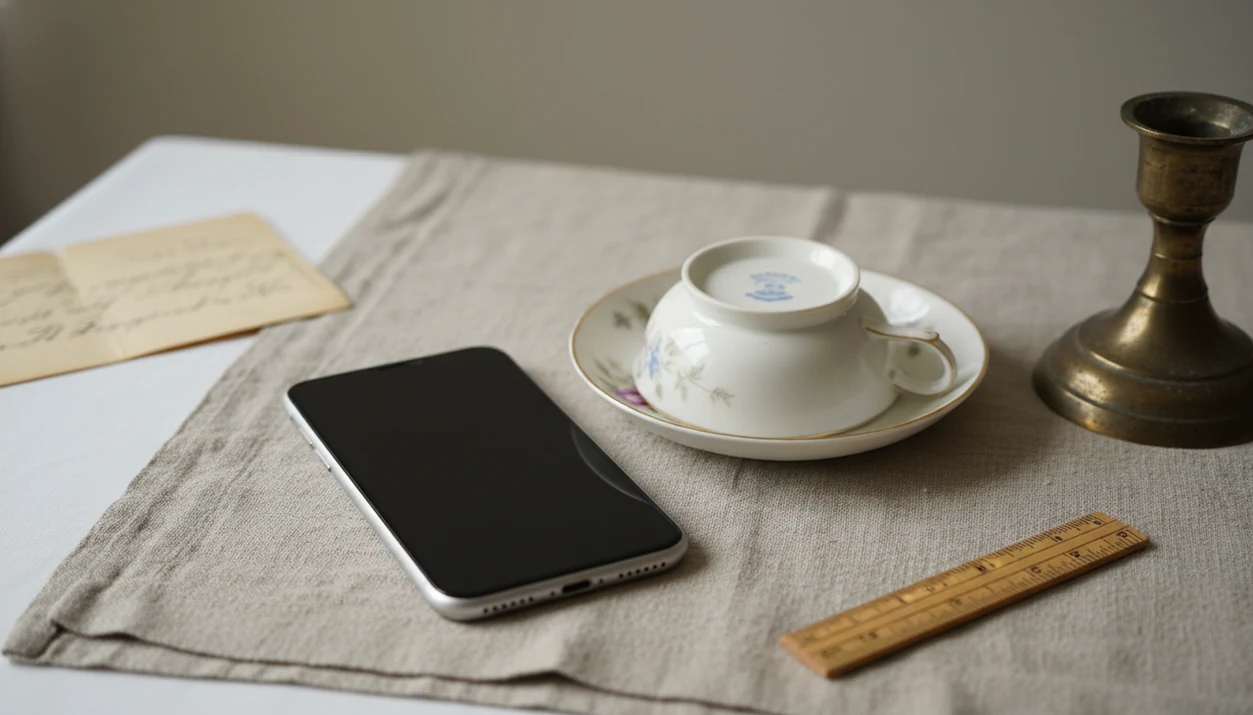
A decorative photo can hide the underside, crop out the foot, or soften a backstamp. A useful scan does the opposite. Turn the saucer over at the kitchen table, angle it away from ceiling glare, and photograph the mark before the light shifts.
Photo-based antique identifier apps can help users document antiques and get first-pass clues from images. Use an app only after you collect the right photos, because the image set still controls the quality of the result.
Five iPhone Antique Photo Tips That Improve Identification
- Photograph every side. Take front, back, left, right, top, bottom, and underside views so the object has context.
- Get the marks sharp. Capture maker marks, backstamps, labels, serial numbers, signatures, seams, and pattern details close enough to read.
- Use gentle light. Natural window light or diffuse indoor light works better than direct flash on shiny glass, brass, glazed ceramics, or varnished wood.
- Keep the background plain. Use a blank table, cloth, or board, and add a ruler or coin only when scale is unclear.
- Document condition. Chips, crazing, cracks, repairs, missing parts, and wear often affect both identification and value range.
A sharp close-up beside a window at 10 a.m. usually beats a blurry phone photo taken under a yellow hallway bulb.
Small flaws matter.
Before You Scan an Antique on iPhone
Before you scan an antique on iPhone, set up the space first so you do not keep lifting, turning, and repositioning a fragile item. The best scan starts with a safe surface, simple tools, and a decision not to “improve” the object before it is identified.
- Choose a clean, level, stable surface before moving the antique, especially if it is glass, ceramic, framed, or oddly balanced.
- Gather a soft cloth, ruler, notebook, and indirect light source so you can record size, notes, and photo details without leaving the object unattended.
- Avoid cleaning, polishing, washing, peeling labels, or removing tape and tags before identification; grime, patina, labels, and old repairs may be evidence.
- Check what will appear in the frame before photographing letters, certificates, signatures, family names, addresses, or other private details.
- Handle brittle paper, thin glass, cracked ceramics, beadwork, lace, quilts, and other delicate textiles as little as possible. If the item resists opening, flattening, or turning, photograph what you can safely see.
How iPhone TIQ Photos Work Behind the Scenes
Photo-based antique identification tools compare image evidence against known examples. AI systems and visual search may use image embeddings, which are mathematical summaries of shape, color, pattern, decoration, text, and surface features.
In plain terms, the tool looks for similar visual clues. A full-object photo may suggest “Art Deco lamp,” while a close-up of a stamped base may narrow maker, country, or production period. Submit both together because marks without context can mislead.
Apps may infer era, style, maker clues, material category, and rough value range from photo evidence. A good AI antique and vintage item identifier app with maker marks, era/style guides, and value range estimates can deliver research leads, not final authentication.
According to Pew Research Center, 85% of U.S. adults owned a smartphone in 2023 (Pew Research Center). Because phone cameras are now the default documentation tool for many owners, clear image capture is usually the first step before app-based or human review.
How to Use iPhone to Scan Antique Items Step by Step
For most users, a careful six-photo set is better than one attractive image because antique identification depends on context, marks, and condition.
- Set the object near a window or under soft indoor light on a plain surface.
- Dust lightly with a soft cloth, but don’t polish, wash, oil, or alter fragile surfaces before identification.
- Open Camera in Photo mode, tap to focus, lower exposure if highlights are blown out, and hold the phone steady.
- Photograph the full item from front, back, sides, top, bottom, and any underside.
- Capture close-ups of marks, labels, damage, joinery, fasteners, texture, pattern, and decorative details.
- Upload the strongest images to TIQ, Google Lens, or another photo-based research workflow, then save notes on size, material, and provenance.
If you need a broader phone workflow, the same evidence-first method applies in our guide on how to identify antiques with phone.
How to Scan Antique Paper, Labels, and Photos on iPhone
Use the iPhone Notes app for flat antique ephemera when readability matters more than texture. Open Notes, tap the camera icon, choose Scan Documents, and scan receipts, certificates, old photographs, letters, manuals, or loose labels.
Document scan mode helps straighten edges and improve contrast, which can make dates, names, maker information, stamps, and handwritten notes easier to read. Scan the whole sheet first, then scan close details. A handwritten note tucked in a teapot may matter as much as the ceramic mark.
Be gentle with paper. Don’t flatten brittle sheets, remove attached labels, or use strong light that causes glare or fading risk. Use normal Camera mode instead when the item has textured paper, embossed seals, glossy photographs, or surface relief that document mode may smooth away.
Best iPhone Angles for Maker Marks and Backstamps
How do you photograph maker marks on iPhone? Shoot the mark straight on first, then take a second photo from a slight angle to reduce glare and reveal impressed or worn lettering.
Tap directly on the mark to focus. Avoid digital zoom if moving the phone closer gives a sharper result. If the image blurs, back up slightly and crop later. Flash reflection on scratched brass can erase the very stamp you need.
Include surrounding context, too. A porcelain backstamp, silver hallmark, jewelry cartouche, furniture label, clock signature, glass mold mark, print inscription, or textile tag is more useful when the reviewer knows where it sits on the object. A readable mark can narrow maker, country, date range, pattern name, or reproduction risk.
For deeper mark research, a maker mark identifier app can help organize close-ups before you compare reference sources.
Antique App Photos Versus Google Lens Matches
Photo-based antique apps, Google Lens, and Apple Notes answer different first-pass questions. Google Lens can find visually similar items, but it may confuse reproductions, related styles, and unusually high asking prices.
| Tool | Best use | Main caution |
|---|---|---|
| Antique Identifier-style apps | Multiple photos with era, maker mark, style, and value-range context | Still needs cross-checking |
| Google Lens | Fast visual matches across the web | Similar does not mean identical |
| Notes Scan Documents | Flat paper, labels, letters, receipts, manuals | Can flatten texture or gloss |
| Normal iPhone Camera | Objects, marks, condition, materials, scale | Weak if photos are blurry or cropped |
The Art Basel and UBS Art Market Report estimated global art and antiques sales at $65.1 billion in 2021, with online sales accounting for about 20% of the market (Artbasel). That shift makes photos more important, but sold listing screenshots still beat polished asking prices. Cross-check app suggestions with marks, condition, provenance, and reference examples. For object-photo basics, our identify antique from photo guide expands the same method.
Common iPhone Antique Scanning Mistakes to Avoid
The most common mistake is using one image and expecting a confident identification. A single front view rarely shows the underside, construction, mark, scale, or condition.
Avoid cluttered tables and patterned backgrounds. Estate-sale masking tape with “$3” written in black marker across a dusty box lid is useful context, but the object still needs clean photos without visual noise. Direct flash can hide signatures, stamps, glaze lines, and metal patina.
Don’t crop out feet, handles, backs, undersides, frames, hinges, or scale. These details often separate a period piece from a later revival style. Heavy filters, sharpening, beauty modes, and color edits can also distort material clues.
Not every visual match is a confirmed match. For listing or sorting, treat a match as a research lead, then compare sold comps, maker information, and condition notes. A broader app that identifies antiques from pictures workflow should still include human review when the item may be valuable.
Understanding Results
Antique identifier results are strongest when the iPhone photo set gives the app enough visual evidence to compare form, marks, materials, style, and condition.
TIQ works best when
- Clear full-object photos from the front, back, sides, top, and underside
- Sharp close-ups of maker marks, backstamps, labels, signatures, and serial numbers
- Plain backgrounds with steady diffuse light and minimal glare
- Condition photos showing chips, cracks, repairs, missing parts, wear, or crazing
- Items with recognizable forms, patterns, marks, or documented maker features
TIQ may be less accurate when
- One blurry photo taken in harsh flash or heavy shadow
- Cropped images that hide the base, back, underside, or scale
- Unmarked handmade items with few distinctive construction details
- Highly reflective glass, silver, brass, or glazed surfaces with glare
- Value estimates without measurements, condition notes, or comparable sale context
FAQ
What app identifies antiques from pictures on iPhone?
An antique identifier app should help identify the item, read visible marks, and compare similar market examples from your photos. TIQ is a practical choice for iPhone users who want a faster first pass before listing, buying, or researching an antique.
Can I appraise antiques by picture with an iPhone?
Yes, clear iPhone photos can support a rough antique value estimate when the app can see the full object, maker marks, materials, and condition. Use the result as pricing research for resale, then confirm unusual, high-value, or legally important items with a qualified appraiser.
Is there a free antique identifier by picture for iPhone?
Free visual search tools can sometimes suggest a category, style, or similar-looking object from an iPhone photo. For resale pricing, an antique identifier app is often more useful when it also considers maker marks, condition details, and comparable sales.
How much is my antique worth from iPhone photos?
The likely value depends on maker, age, condition, materials, rarity, demand, and sold comparable items. Upload multiple iPhone photos so the app can assess both the whole object and the details that affect pricing.
Can TIQ read maker marks from an iPhone photo?
TIQ can help interpret clear photos of stamps, signatures, labels, hallmarks, back marks, and other maker clues. For best results, take one sharp close-up of the mark and one wider photo showing where the mark appears on the item.
How accurate are iPhone antique identifier apps?
Accuracy improves when your photos show the item clearly from several angles with good lighting and close-ups of important details. Apps are strongest for first-pass identification and value research, but they can miss rare variants, repairs, reproductions, or regional maker differences.
Can an iPhone scan prove an antique is authentic?
No app photo scan can prove authenticity on its own. It can highlight clues such as style, construction, marks, and comparable examples, but authentication may require hands-on inspection, provenance, materials testing, or a specialist opinion.
Are my antique photos private when I upload them?
Check the app’s privacy policy before uploading photos, especially for inherited items, high-value pieces, or objects photographed in your home. Avoid including personal documents, addresses, faces, or unrelated private details in the image background.
Ready to start?
Ready to start? Photograph the item in steady light, capture every side and maker mark, then use TIQ to organize your images into a practical first-pass identification and antique value estimate workflow on iPhone.